
How to Fix Error Establishing Database Connection in WordPress (Step-by-Step Guide)
One of the most alarming WordPress errors website owners encounter is the “Error Establishing Database Connection” message.
Unlike many other WordPress errors, this problem can completely take your website offline and prevent visitors from accessing any pages.
The good news is that the issue is usually fixable once you identify the underlying cause.
In this guide, you’ll learn:
- What causes the database connection error
- How to diagnose the problem
- How to repair your WordPress database
- How to verify database credentials
- How to use phpMyAdmin for troubleshooting
- How to prevent future database issues
What Does “Error Establishing Database Connection” Mean?
WordPress stores nearly all website data inside a MySQL database.
This includes:
- Posts and pages
- User accounts
- Plugin settings
- Theme settings
- Website configuration data
Whenever someone visits your website, WordPress must connect to the database to retrieve this information.
If WordPress cannot establish that connection, it displays:
This means WordPress cannot communicate with your database server successfully.
Why Does This Error Occur?
Several issues can cause WordPress to lose access to its database.
Most Common Causes
- Incorrect database credentials
- Corrupted database tables
- Database server downtime
- Hosting server issues
- Corrupted WordPress files
- Database overload
- Website hacking or malware
Understanding the cause helps you choose the correct fix quickly.
How to Fix Error Establishing Database Connection in WordPress
Follow these methods one by one until your website starts working again.
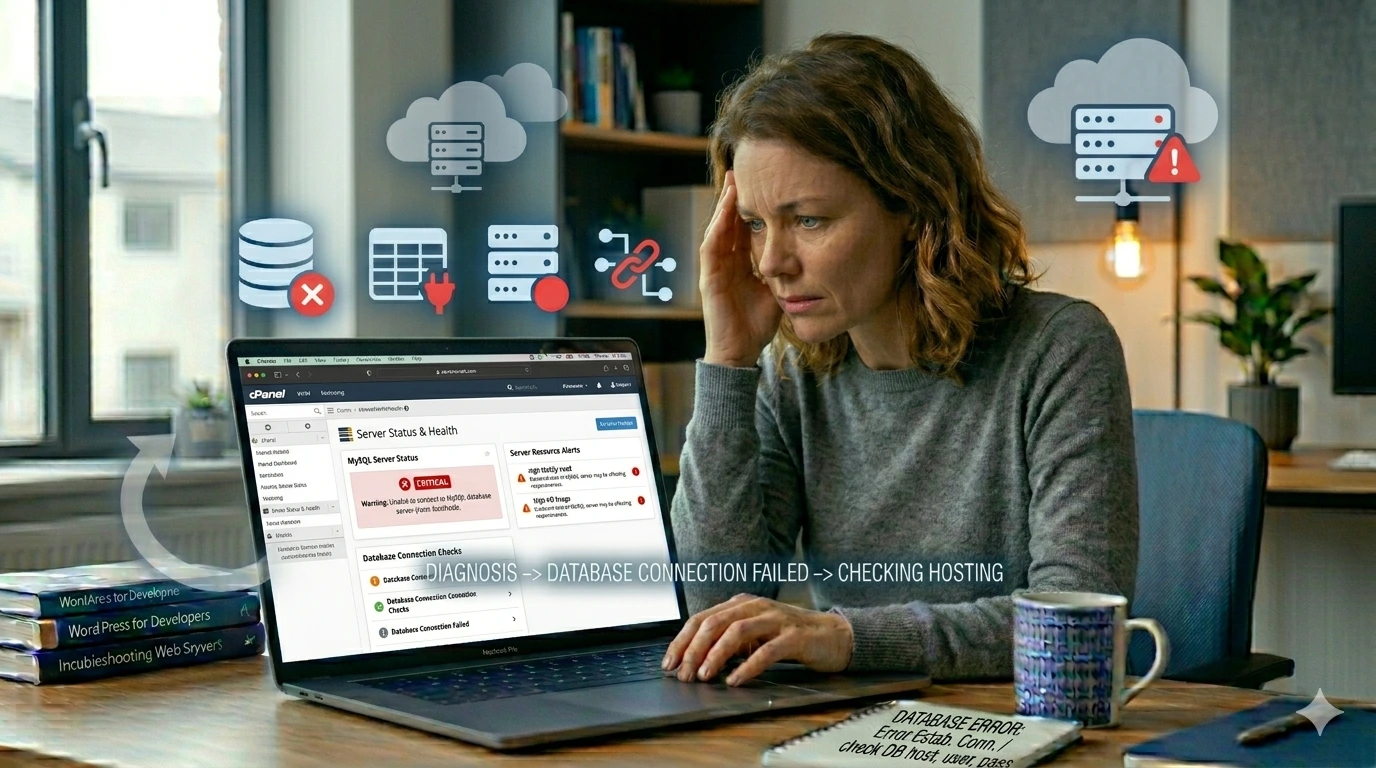
1. Check Whether Your Hosting Server Is Down
Before editing WordPress files, verify whether the issue is caused by your hosting provider.
Sometimes:
- The MySQL server is temporarily unavailable
- The hosting account exceeds resource limits
- The hosting provider is experiencing an outage
Contact your hosting support team and ask them:
- Is the MySQL server running properly?
- Are there any resource limit issues?
- Are there any server outages affecting the account?
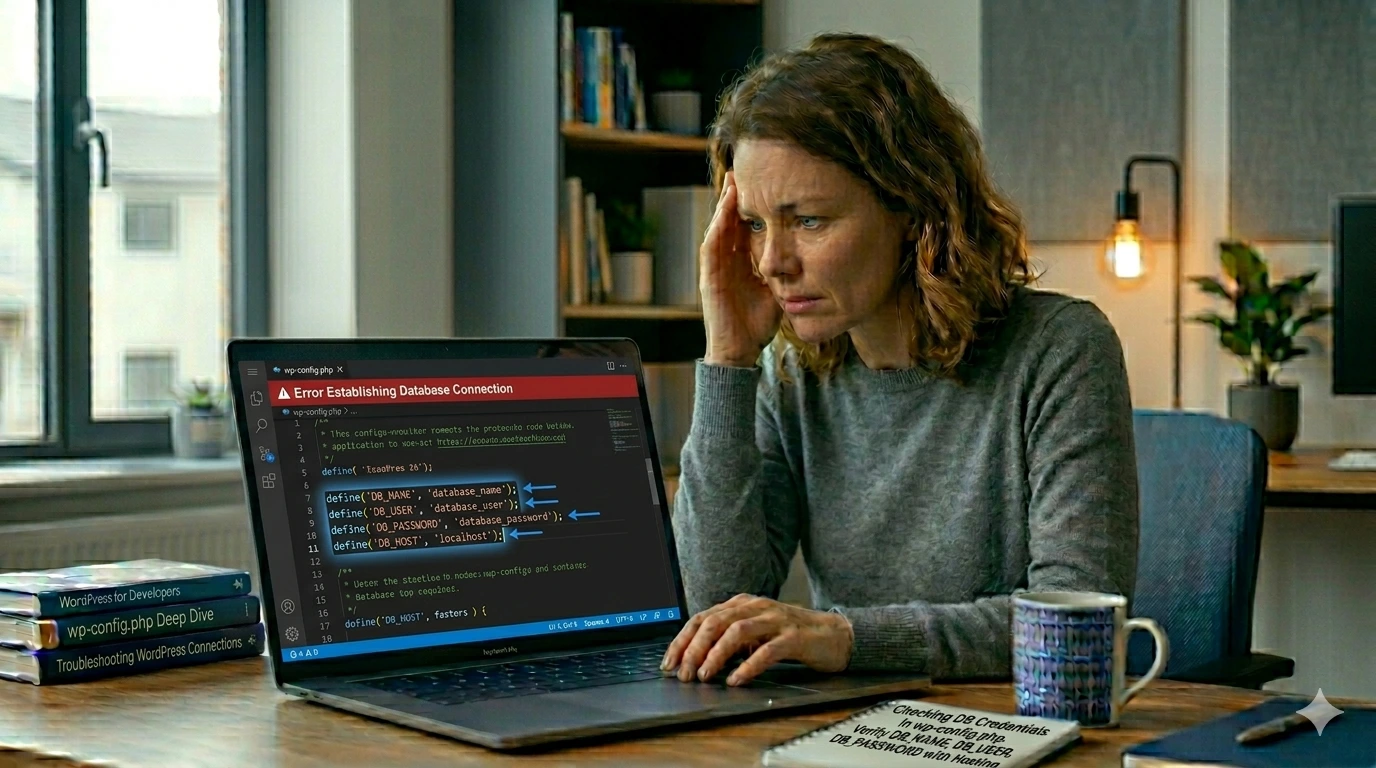
2. Verify Database Credentials in wp-config.php
Incorrect database credentials are one of the most common reasons for this error.
WordPress stores database login information inside:
wp-config.php
Open the file and verify the following values:
define('DB_NAME', 'database_name');
define('DB_USER', 'database_user');
define('DB_PASSWORD', 'database_password');
define('DB_HOST', 'localhost');
Make sure these values exactly match the credentials provided by your hosting provider.
3. Verify Database Settings Using phpMyAdmin
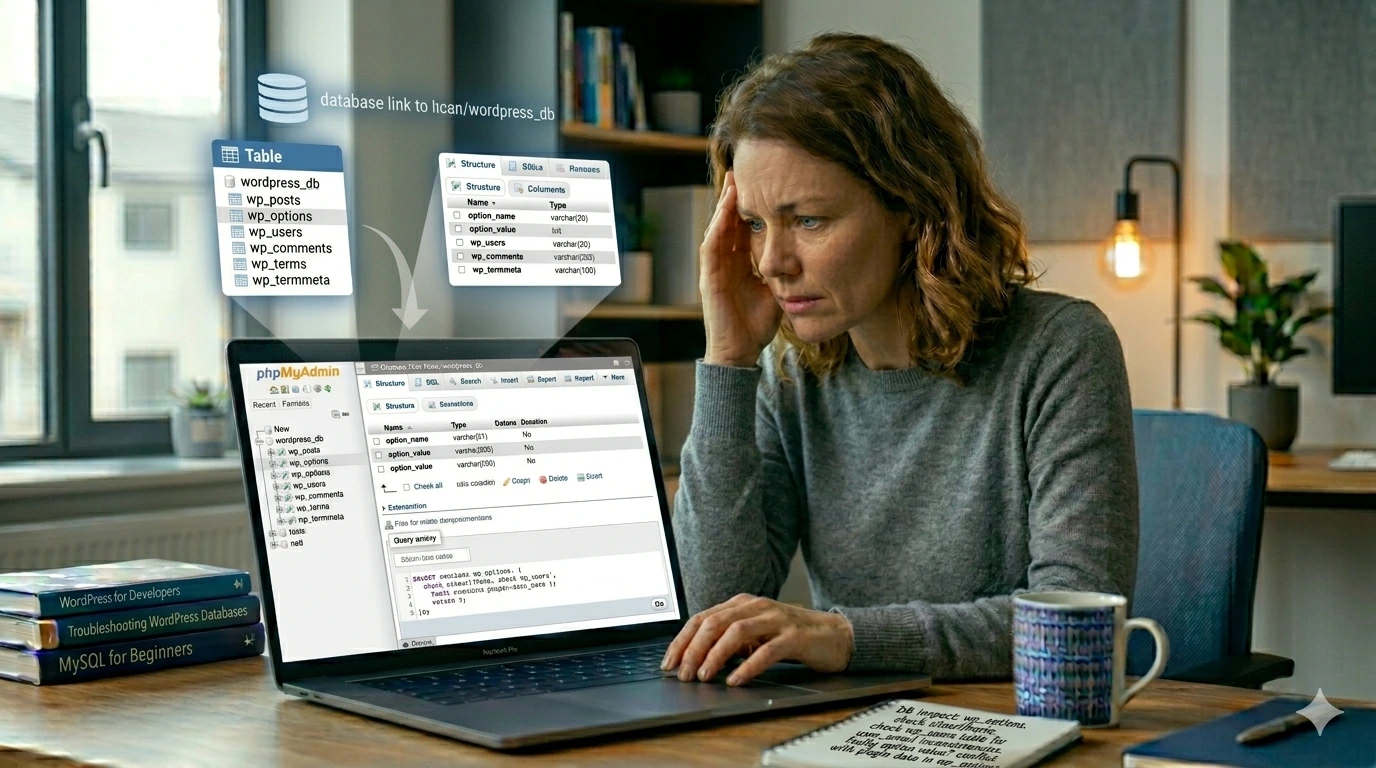
If the database credentials in wp-config.php appear correct, the next step is to verify that the database actually exists and is accessible.
How to Check Using phpMyAdmin
- Log in to your hosting control panel.
- Open phpMyAdmin.
- Select the database mentioned in:
DB_NAME
- Ensure the database opens successfully.
- Verify that WordPress tables are present.
You should see tables similar to:
wp_posts
wp_options
wp_users
wp_comments
wp_terms
If the database is empty or missing tables, the database may have been corrupted or deleted.
4. Repair a Corrupted WordPress Database
Corrupted database tables are another common reason behind the “Error Establishing Database Connection” message.
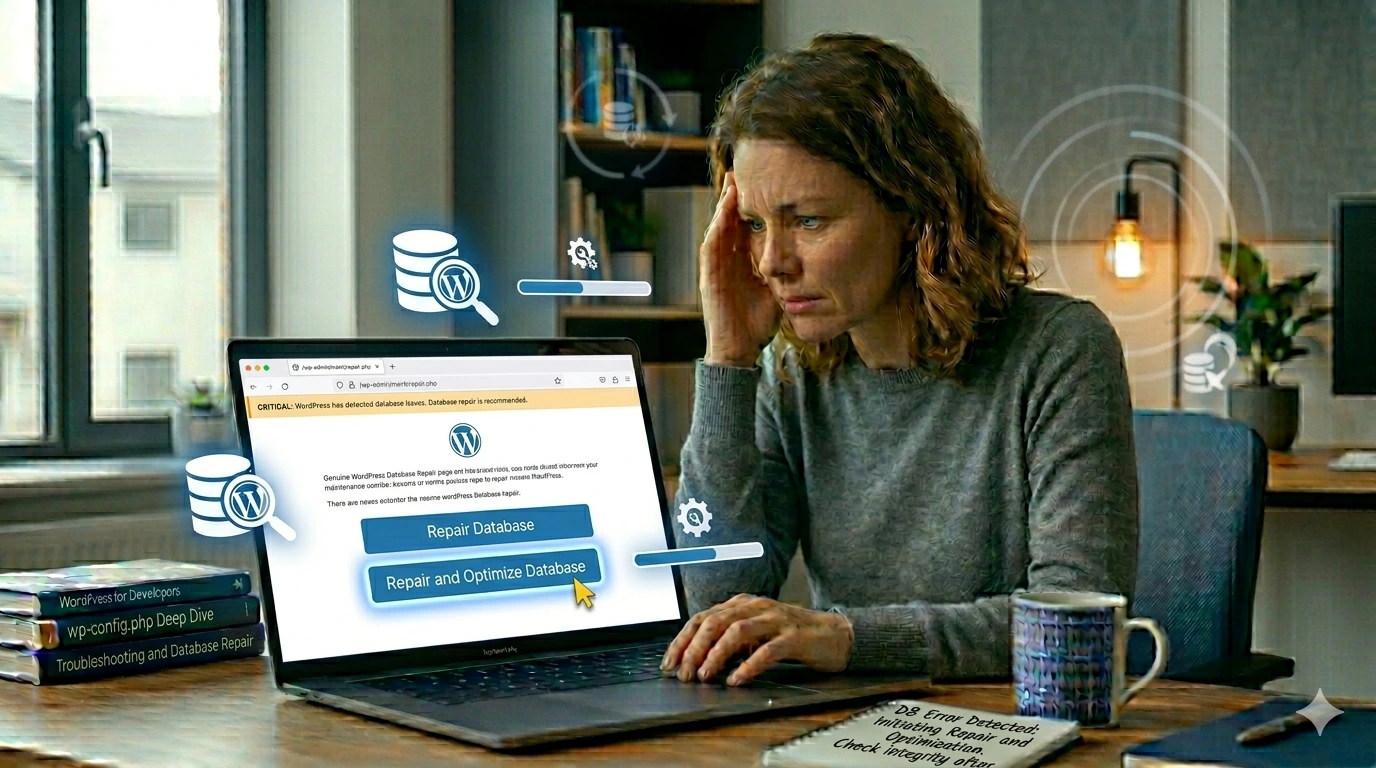
WordPress includes a built-in database repair tool.
Enable Database Repair Mode
Open:
wp-config.php
Add the following line just above:
/* That's all, stop editing! */
define('WP_ALLOW_REPAIR', true);
Save the file.
Then visit:
https://yourwebsite.com/wp-admin/maint/repair.php
You will see options to:
- Repair Database
- Repair and Optimise Database
Click:
Repair and Optimise Database
5. Repair Database Tables Using phpMyAdmin
If the built-in repair tool does not solve the problem, you can manually repair database tables using phpMyAdmin.
Steps to Repair Tables
- Open phpMyAdmin.
- Select your WordPress database.
- Check all WordPress tables.
- Open the dropdown menu:
Select:
Repair Table
phpMyAdmin will scan and repair damaged database tables automatically.

6. Check the wp_options Table
The wp_options table contains critical website settings.
If this table becomes corrupted, WordPress may fail to load properly.
What to Verify
Inside the wp_options table, verify:
siteurl
home
Both URLs should be correct.
Example:
https://yourwebsite.com
Incorrect URLs can sometimes create login issues, redirect loops, and database-related loading problems.

7. Check Database User Permissions
Sometimes WordPress cannot connect because the database user does not have proper permissions.
Open your hosting database management area and verify that the database user has:
- SELECT
- INSERT
- UPDATE
- DELETE
- CREATE
- ALTER
- INDEX
Many hosting providers allow you to manage database permissions directly from cPanel.

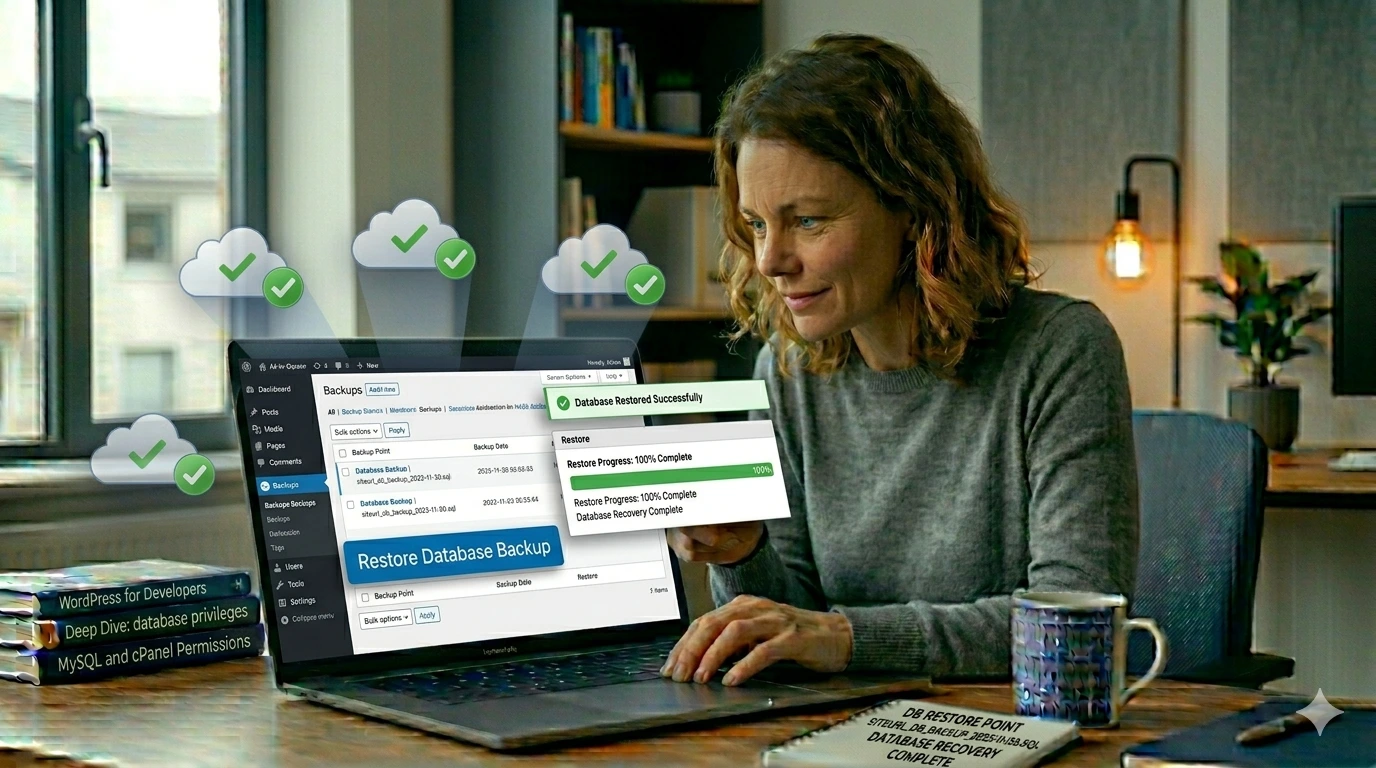
8. Restore Website from Backup
If the database has become severely corrupted and repairs fail, restoring a recent backup may be the fastest solution.
You can restore backups from:
- Hosting backups
- UpdraftPlus backups
- Jetpack backups
- Manual database exports
How to Prevent Database Connection Errors in WordPress
Once your website is working again, it’s important to take preventive measures to reduce the chances of this error happening in the future.
Database connection issues often occur unexpectedly, but proper maintenance can significantly lower the risk.
Best Practices to Prevent Database Problems
- Keep WordPress core updated
- Update plugins and themes regularly
- Create automatic daily backups
- Use quality WordPress hosting
- Monitor server resource usage
- Regularly optimise database tables
- Remove unused plugins and themes
- Protect your website from malware
- Maintain proper database user permissions
Following these practices can help prevent many common WordPress database issues.
Frequently Asked Questions
What causes the “Error Establishing Database Connection” in WordPress?
The most common causes are incorrect database credentials, corrupted database tables, hosting server issues, database user permission problems, or a crashed MySQL server.
Can I fix this error without contacting my hosting provider?
Yes. In many cases, you can resolve the issue yourself by checking wp-config.php, repairing the database, reviewing phpMyAdmin settings, or restoring a backup.
Will I lose my website data if the database is corrupted?
Not necessarily. Most database corruption issues can be repaired. If you maintain regular backups, your website data can usually be restored successfully.
Is phpMyAdmin safe to use?
Yes, phpMyAdmin is safe when used correctly. However, always create a backup before making changes to your database tables or settings.
Can a hosting issue cause database connection errors?
Absolutely. MySQL server outages, resource limitations, account suspensions, and server maintenance can all prevent WordPress from connecting to the database.
How do I know if my database credentials are wrong?
Compare the DB_NAME, DB_USER, DB_PASSWORD, and DB_HOST values inside wp-config.php with the values shown in your hosting database management panel.
Final Thoughts
The Error Establishing Database Connection message can be alarming because it often takes your entire website offline. Fortunately, the issue is usually caused by incorrect database credentials, corrupted tables, hosting problems, or
database permission issues.
By following the troubleshooting methods in this guide, you can systematically identify the root cause and restore your website without unnecessary downtime.
Always remember to create backups before making database changes and use phpMyAdmin carefully when repairing or modifying database tables.
Need Professional Help?
If you are unable to fix the Error Establishing Database Connection issue yourself, contact WPServiceHub for expert WordPress troubleshooting, database repair, website maintenance, optimisation, and support services.