
WooCommerce Checkout Not Working? Here’s How to Fix It (Complete Step-by-Step Guide)
If your WooCommerce checkout page is not working, your customers cannot complete their orders. That means lost sales, abandoned carts, frustrated buyers, and lower revenue for your business.
For an online store, the checkout page is the most important part of the buying process. A visitor can browse products, add items to the cart, and be ready to buy — but if checkout fails, the sale is gone.
Even a few hours of checkout downtime can cost real money.
We’ve seen store owners lose dozens of orders because of broken payment gateways, plugin conflicts, JavaScript errors, and server-level issues.
The good news? Most WooCommerce checkout issues can be fixed if you follow the right troubleshooting steps.
Before hiring a developer, try these fixes first.
- WooCommerce checkout page not loading
- WooCommerce checkout keeps refreshing
- Place Order button not working
- WooCommerce payment failed
- Session expired error
- Blank checkout page
- Checkout AJAX error
Why WooCommerce Checkout Stops Working
Before fixing the issue, it’s important to understand what causes it.
WooCommerce checkout usually breaks because of:
- Plugin conflicts
- Theme compatibility problems
- Payment gateway configuration errors
- JavaScript conflicts
- Cached checkout pages
- Expired WooCommerce sessions
- Missing checkout shortcode
- SSL problems
- Server firewall restrictions
- Low PHP memory limit
Sometimes the problem starts after updating plugins. Other times it happens because of hosting configuration changes.
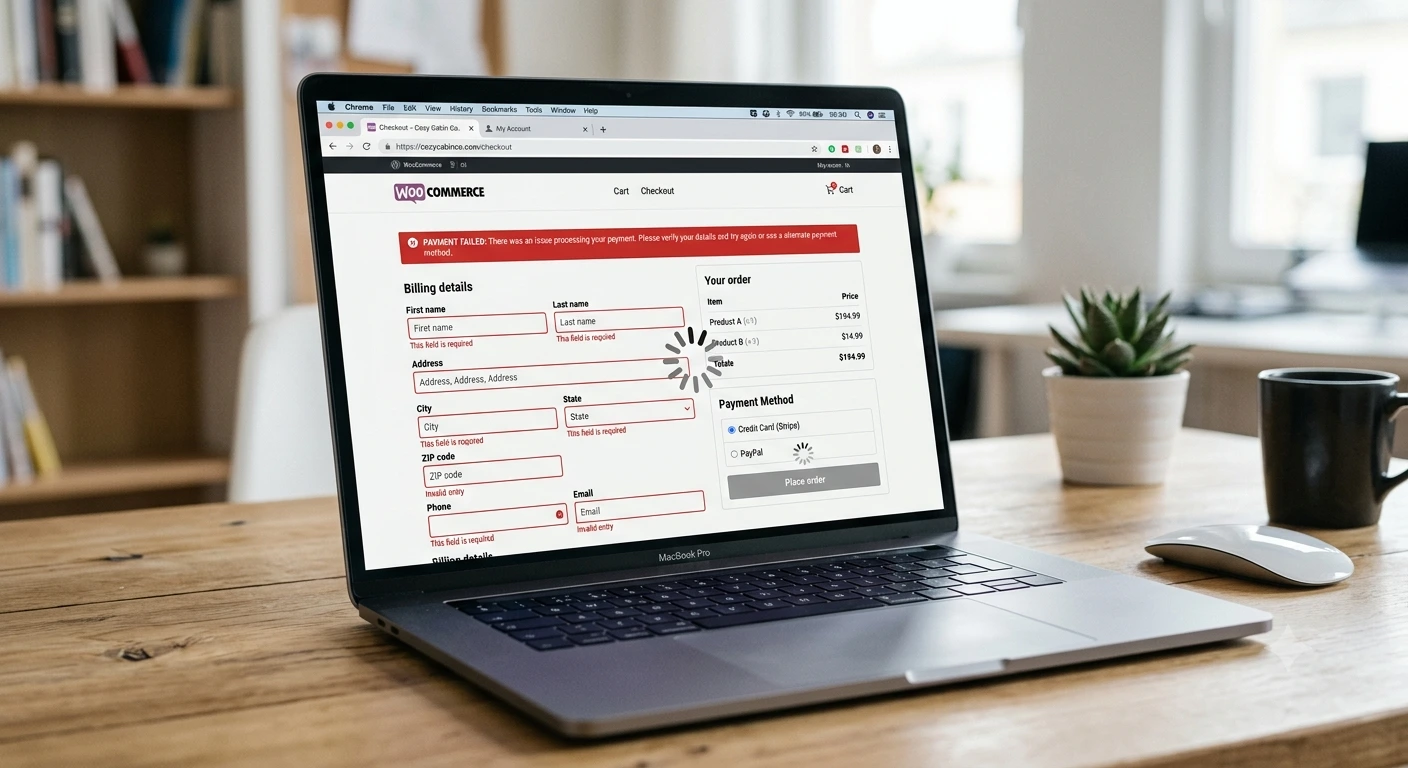
Try These DIY Fixes First
Start with these simple fixes before moving into advanced troubleshooting.
1. Update WooCommerce, Theme, and Plugins
Outdated files often create compatibility problems.
Go to:
Dashboard → Updates
Update:
- WooCommerce
- Your active theme
- Payment plugins
- Shipping plugins
After updating, test the checkout page again.
2. Disable All Plugins Except WooCommerce
Plugin conflicts are one of the most common reasons checkout stops working.
To test:
- Go to Plugins
- Deactivate all plugins except WooCommerce
- Test checkout
If checkout works, activate plugins one by one.
This helps identify the conflicting plugin.
3. Switch to Default Theme
Some custom themes override WooCommerce templates incorrectly.
Temporarily switch to:
- Storefront
- Twenty Twenty-Six
If checkout works after switching, your theme is the issue.
4. Check the Checkout Page Shortcode
Your checkout page must contain:
[woocommerce_checkout]
If this shortcode is missing, the page will break.
Go to Pages → Checkout and verify it exists.
5. Clear Cache and CDN
Cached checkout pages often cause expired sessions and broken order placement.
Clear:
- Plugin cache
- Browser cache
- Hosting cache
- CDN cache
6. Fix Checkout Page Keeps Refreshing
If checkout keeps refreshing instead of processing the order, it usually means validation failed.
Possible reasons:
- Required fields missing
- Session expired
- Payment gateway validation failed
- JavaScript issue
Check all required fields and test again.
7. Fix Place Order Button Not Working
If the Place Order button does nothing, JavaScript is often responsible.
Open browser console:
- Press F12
- Open Console tab
- Look for red errors
JavaScript conflicts often come from themes, sliders, analytics, or custom checkout plugins.
8. Fix Payment Failed Errors
Payment failures are another common issue.
Common errors:
Payment could not be processed
Transaction declined
Invalid payment method
Session expired
Check:
- API keys
- Webhook URLs
- Live/Test mode
- Currency settings
- Gateway account status
Advanced WooCommerce Checkout Fixes
If the simple fixes didn’t work, move to advanced troubleshooting.
9. Enable WordPress Debug Logs
Hidden PHP errors can break checkout silently.
Add this in wp-config.php:
define('WP_DEBUG', true);
define('WP_DEBUG_LOG', true);
Then check:
/wp-content/debug.log
This often reveals plugin errors, fatal errors, and PHP warnings.
10. Check WooCommerce Logs
WooCommerce stores logs for payment and API issues.
Go to:
WooCommerce → Status → Logs
Look for:
- Webhook failures
- Payment API errors
- Gateway timeouts
11. Reset Permalinks
Broken permalinks can affect checkout URLs.
Go to:
Settings → Permalinks
Click Save Changes.
This refreshes URL rewrite rules.
12. Increase PHP Memory Limit
WooCommerce stores with multiple plugins often need more memory.
Add this:
define('WP_MEMORY_LIMIT', '256M');
Low memory can break checkout requests.
13. Check SSL and HTTPS Setup
Payment gateways require secure checkout pages.
Make sure:
- SSL certificate is active
- Checkout uses HTTPS
- No mixed content errors exist
14. Check Hosting Firewall or ModSecurity
Some hosting firewalls block WooCommerce AJAX requests.
Ask your host:
- Is ModSecurity blocking checkout?
- Are firewall rules blocking AJAX?
- Are rate limits active?
When Should You Stop DIY and Contact a WooCommerce Expert?
Some checkout issues are simple. Others can become dangerous if you keep changing files without understanding the root cause.
You should contact an expert if:
- Your checkout uses custom-coded functions
- Payment gateway webhooks are failing
- Server logs show fatal errors
- Database sessions are corrupted
- Theme overrides are broken
- Orders are being created but payments fail
Frequently Asked Questions
Why is my WooCommerce checkout page blank?
This usually happens because of plugin conflicts, PHP errors, or theme issues.
Why does WooCommerce checkout keep loading?
This usually happens because of AJAX errors, session problems, or JavaScript conflicts.
Why is the Place Order button not working?
This is often caused by JavaScript conflicts or payment gateway validation issues.
Can cache plugins break WooCommerce checkout?
Yes. Cached checkout pages often create session and payment issues.
Should I hire a WooCommerce expert?
If the issue involves custom code, payment APIs, or server errors, expert help can save time and prevent lost sales.
Final Thoughts
WooCommerce checkout issues can feel stressful because every failed checkout means a lost customer.
The good thing is that most issues can be fixed by checking plugin conflicts, payment settings, cache, sessions, logs, and server configuration.
Start with the DIY fixes first. They solve most common checkout issues.
If your store is still losing orders after trying everything above, it’s better to fix it properly before the problem gets worse.
Losing Orders Because WooCommerce Checkout Is Broken?
If your WooCommerce checkout is still not working, WPServiceHub can quickly diagnose and fix plugin conflicts, payment gateway issues, theme bugs, AJAX failures, and advanced WooCommerce checkout problems.