
How to Fix WordPress White Screen of Death (Step-by-Step Guide)
One of the most frustrating WordPress errors is the White Screen of Death (WSOD). Instead of your website loading normally, all you see is a completely blank white page with no error message.
This issue can affect:
- Your homepage
- WordPress admin dashboard
- Specific pages only
- The entire website
The good news is that the problem is usually caused by a plugin conflict, theme issue, low PHP memory, caching problem, or server configuration issue.
In this detailed guide, you will learn:
- What causes the WordPress White Screen of Death
- How to diagnose the exact issue
- Step-by-step methods to fix it
- Ways to prevent it in future

What Is the WordPress White Screen of Death?
The WordPress White Screen of Death (WSOD) is a fatal error where your website displays nothing but a blank white page.
Unlike other errors, WordPress may not show any warning or technical details, making it difficult to identify the root cause.
This issue commonly occurs after:
- Installing or updating a plugin
- Updating your theme
- Adding custom PHP code
- Running out of server memory
- Updating WordPress core
- Changing PHP versions
Why Does WordPress Show a Blank White Page?
There are several possible causes behind the WordPress White Screen of Death.
Common Causes of WSOD
- Plugin conflicts
- Broken or incompatible themes
- PHP memory exhaustion
- Corrupted WordPress files
- Caching issues
- Server misconfiguration
- PHP syntax errors
- Hosting-related problems
In most cases, disabling a problematic plugin or increasing the PHP memory limit resolves the issue quickly.
How to Fix WordPress White Screen of Death Step-by-Step
Follow the troubleshooting steps below in order until your website starts working again.
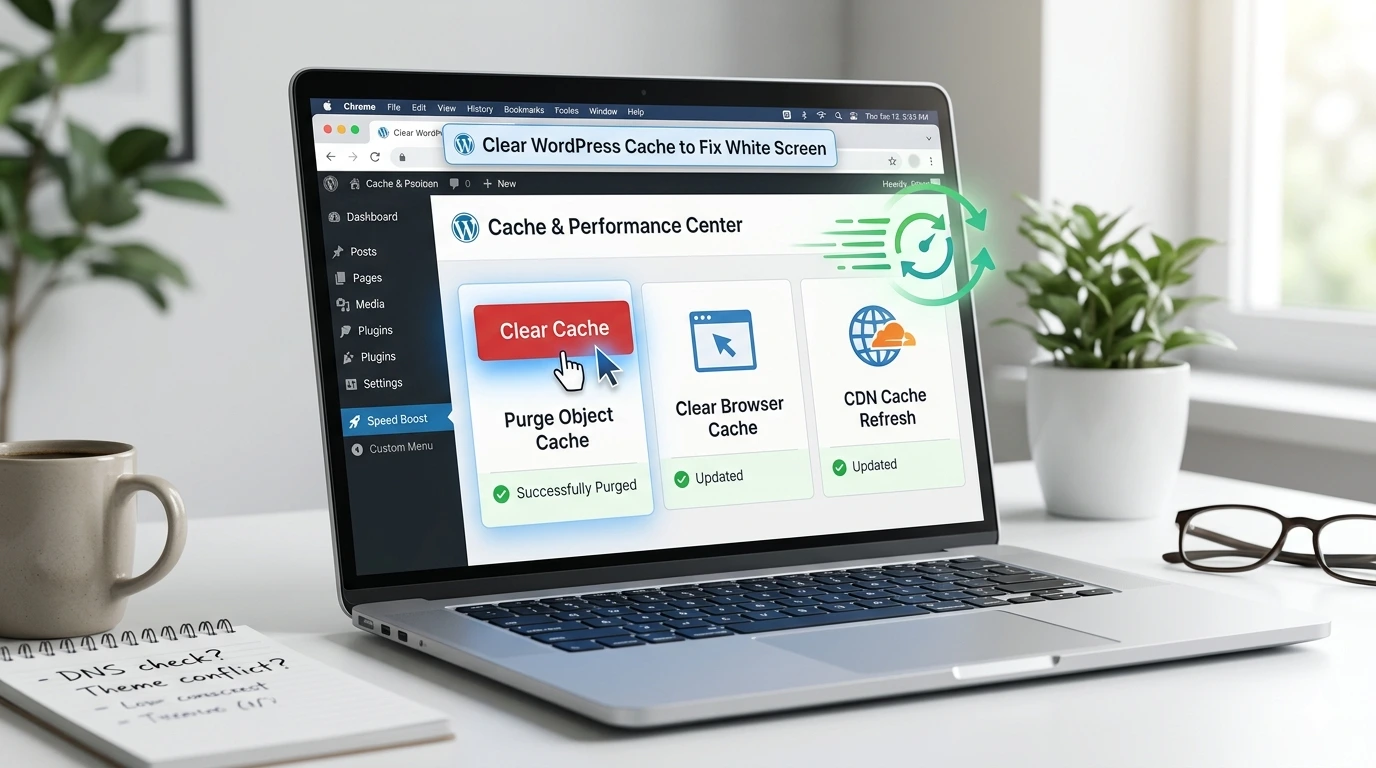
1. Clear Browser and Website Cache
Sometimes the issue is temporary and caused by cached files rather than an actual website problem.
What to Clear
- Browser cache
- WordPress cache plugin cache
- CDN cache (such as Cloudflare)
- Server cache
After clearing all caches, refresh your website and check whether the blank white page disappears.
2. Disable All Plugins
Plugin conflicts are one of the most common causes of the WordPress White Screen of Death.
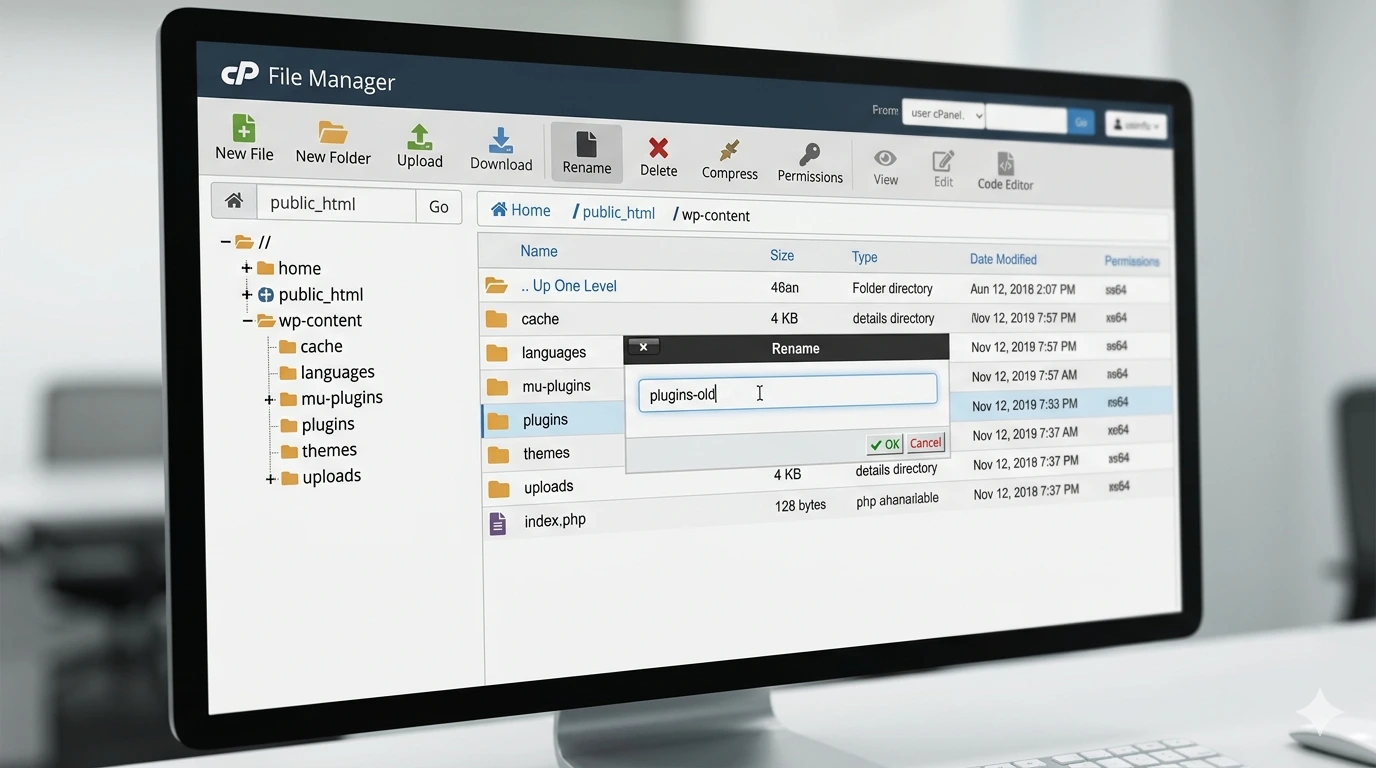
Steps to Disable Plugins Using File Manager
- Log in to your hosting account.
- Open File Manager or connect via FTP.
- Navigate to:
public_html/wp-content/
- Rename:
plugins
to:
plugins-old
Refresh your website. If it loads correctly, one of the plugins is causing the issue.
3. Identify the Faulty Plugin
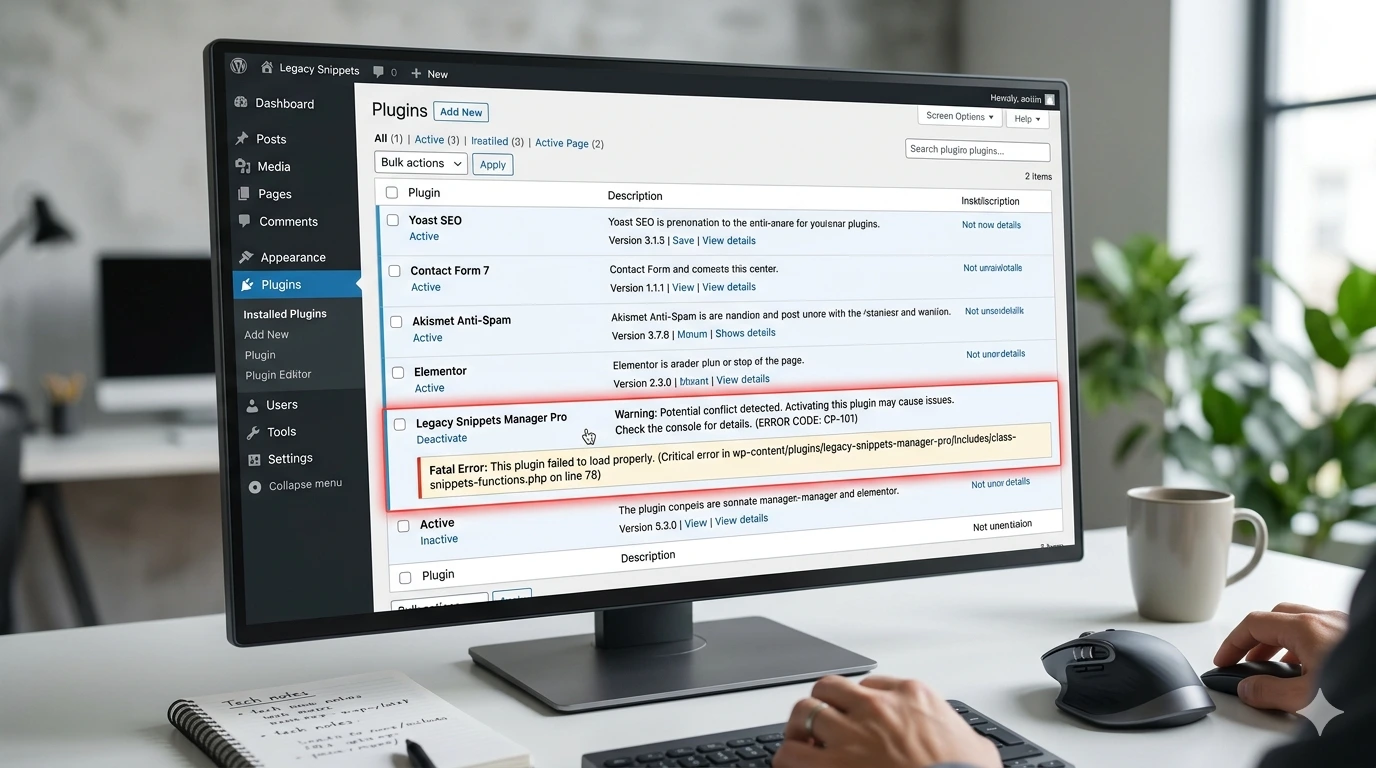
Once your website is working again:
- Rename the folder back to:
plugins
- Log in to the WordPress dashboard.
- Activate plugins one by one.
The plugin that causes the white screen to reappear is the problematic plugin.
You can then:
- Delete the plugin
- Update the plugin
- Replace it with a better alternative
4. Switch to a Default WordPress Theme
If disabling plugins does not solve the issue, your active theme may be causing the WordPress White Screen of Death.
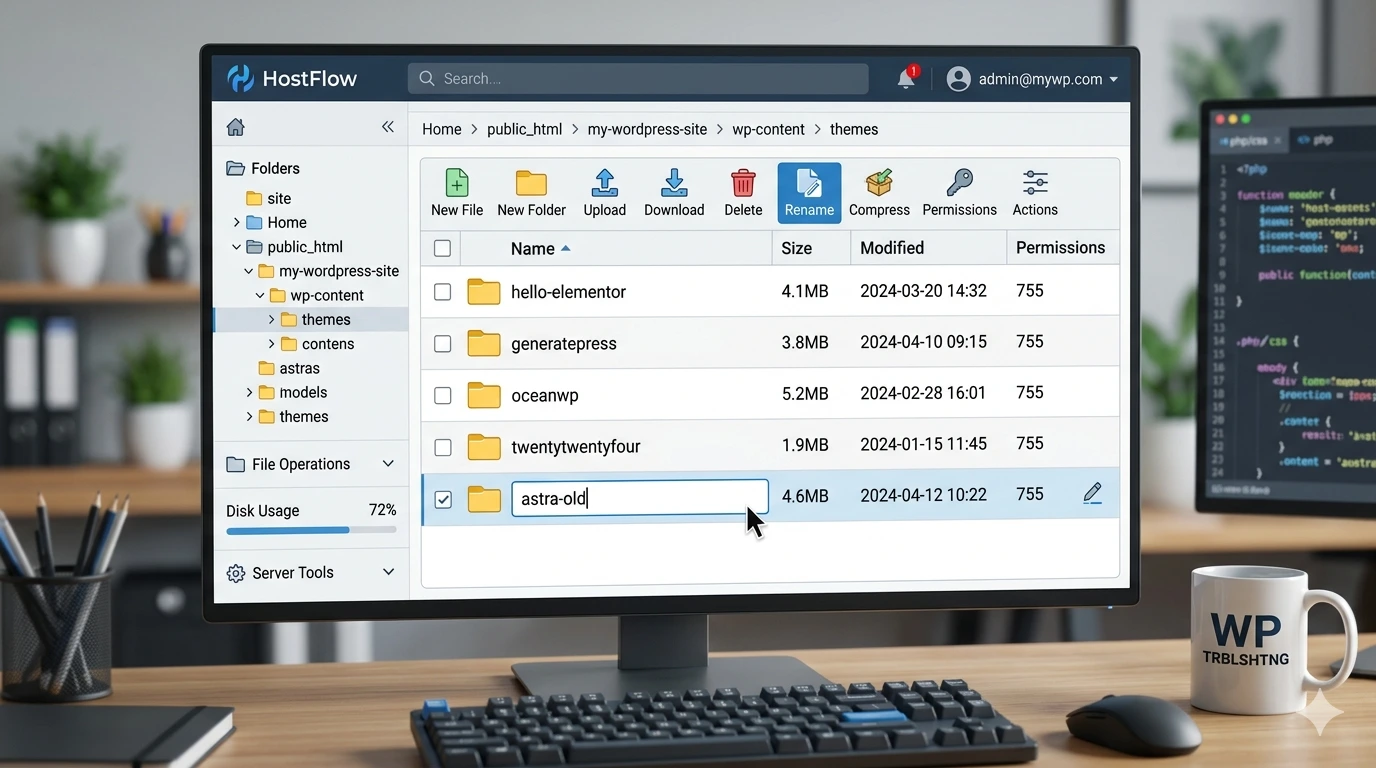
Steps to Test Your Theme
- Open your hosting File Manager or connect via FTP.
- Navigate to:
wp-content/themes/
- Rename your active theme folder.
Example:
astra → astra-old
WordPress will automatically switch to a default theme such as:
- Twenty Twenty-Four
- Twenty Twenty-Three
If your website starts loading normally, your theme is responsible for the issue.
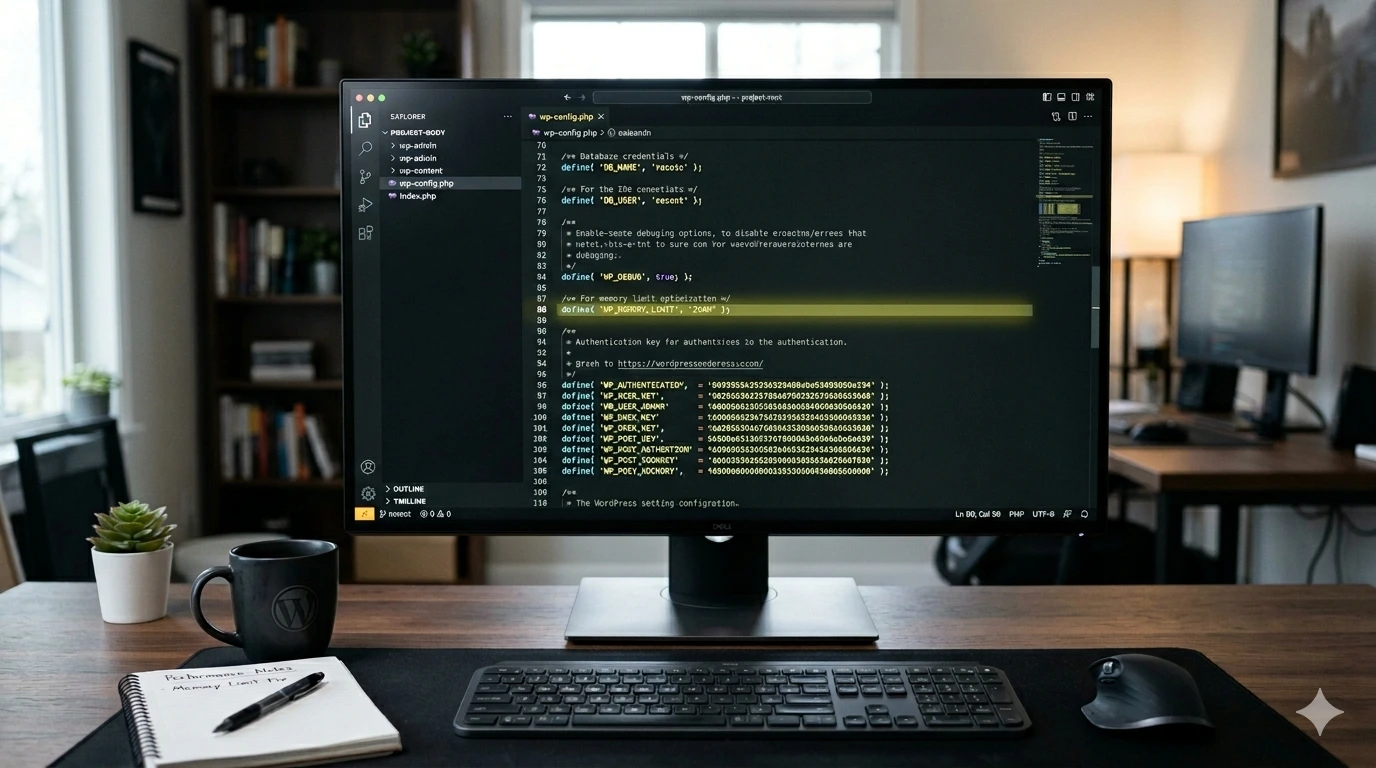
5. Increase PHP Memory Limit
Low PHP memory is another common reason why WordPress displays a blank white page.
Steps to Increase PHP Memory
- Open:
wp-config.php
- Add the following code above:
/* That's all, stop editing! */
- Insert:
define('WP_MEMORY_LIMIT', '256M');
Save the file and reload your website.
6. Enable WP_DEBUG Mode
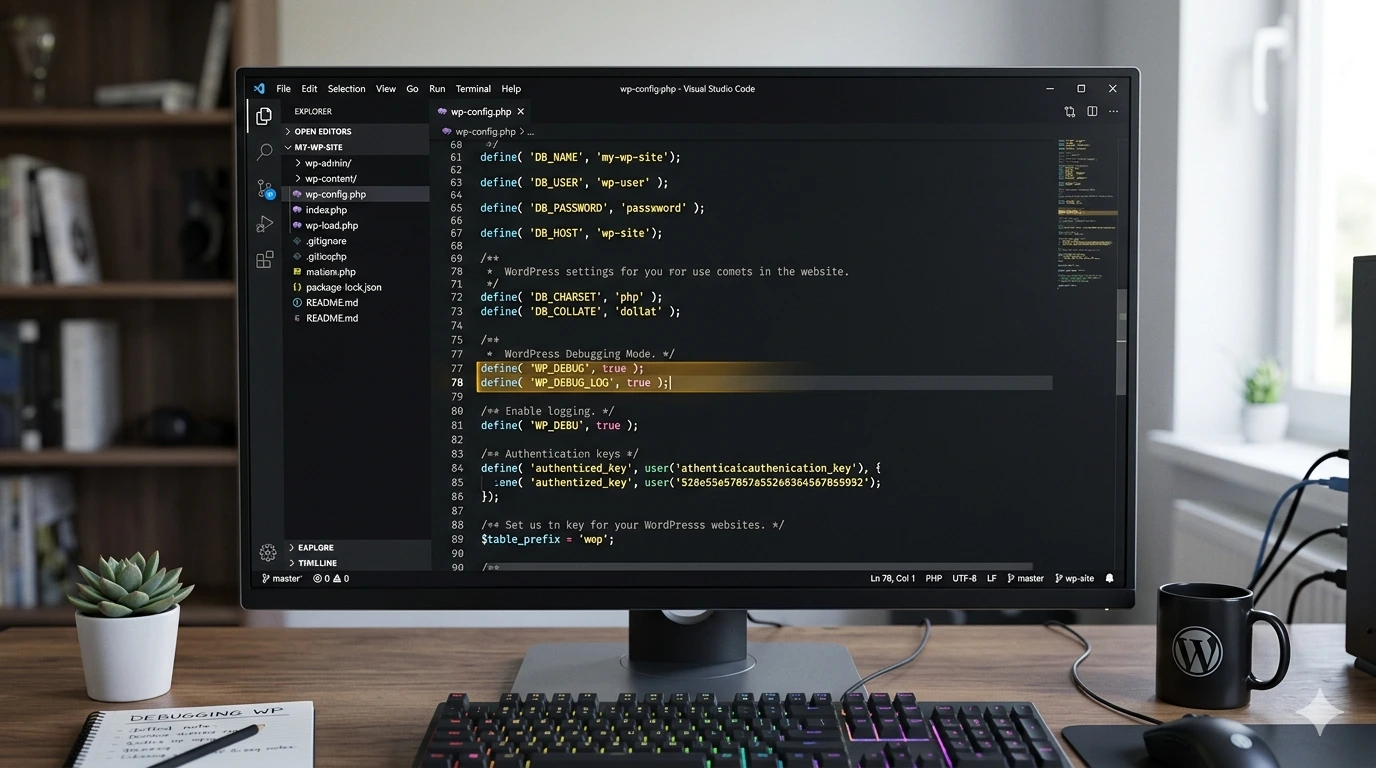
If the white screen persists, enabling debug mode will help reveal hidden PHP errors.
Steps to Enable WP_DEBUG
- Open:
wp-config.php
- Find:
define('WP_DEBUG', false); - Replace it with:
define('WP_DEBUG', true); define('WP_DEBUG_LOG', true); define('WP_DEBUG_DISPLAY', false); - Save the file.
WordPress will create a log file at:
wp-content/debug.log
Open this file to identify the exact plugin, theme, or PHP file causing the error.
7. Re-upload WordPress Core Files
Corrupted WordPress core files can also trigger the White Screen of Death.
Steps
- Download a fresh copy of WordPress from the official website.
- Extract the ZIP file.
- Upload fresh copies of:
- wp-admin
- wp-includes
- wp-content
- wp-config.php
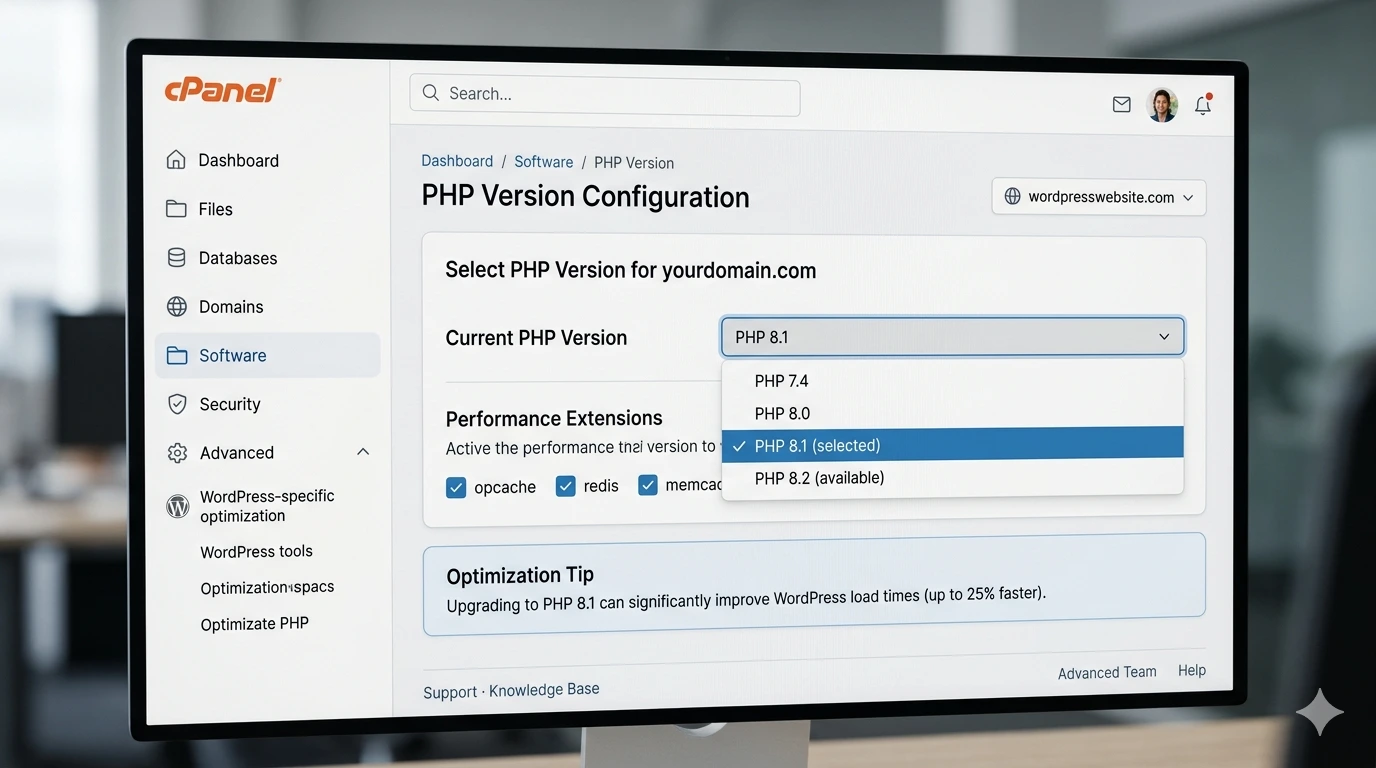
8. Check Hosting and PHP Version
Hosting configuration issues can sometimes cause WordPress to display a blank white page.
Things to verify:
- Your PHP version is 8.1 or higher
- Your hosting account has sufficient resources
- No temporary server outage is occurring
- Error logs do not show server-side failures
If necessary, ask your hosting provider to review server logs and resource usage.
How to Prevent the WordPress White Screen of Death
You can significantly reduce the chances of encountering the WordPress White Screen of Death by following a few best practices.
- Keep WordPress core, themes, and plugins updated
- Use trusted themes and plugins only
- Delete unused plugins and themes
- Create regular backups of your website
- Test major updates on a staging site first
- Avoid editing PHP files directly without a backup
- Monitor your hosting error logs regularly
- Use quality WordPress hosting
Frequently Asked Questions
Why is my WordPress website blank?
A blank WordPress website is usually caused by a plugin conflict, theme issue, PHP memory exhaustion, caching problem, or server configuration error.
Can hosting cause the WordPress White Screen of Death?
Yes. Server outages, low resource limits, outdated PHP versions, and misconfigured hosting settings can all trigger the White Screen of Death.
Will I lose my website data?
Usually no. The White Screen of Death generally affects how the website loads rather than deleting your posts, pages, or database content.
Can a plugin update cause a blank white page?
Yes. Incompatible or poorly coded plugin updates are one of the most common reasons for the WordPress White Screen of Death.
What if I cannot access the WordPress admin dashboard?
You can still troubleshoot the issue using your hosting File Manager, FTP client, and the wp-config.php file.
Final Thoughts
The WordPress White Screen of Death may seem alarming, but in most cases it can be fixed quickly by identifying the underlying cause
Plugin conflicts, broken themes, low PHP memory, caching problems, and hosting issues are the most common reasons behind this error.
By following the troubleshooting steps in this guide, you can restore your website safely and minimise the chances of the problem returning.
Need Professional Help?
If you are unable to fix the WordPress White Screen of Death yourself, contact WPServiceHub for expert WordPress troubleshooting, maintenance, optimisation, and support services.