
How to Fix the Critical Error in WordPress (Step-by-Step Guide)
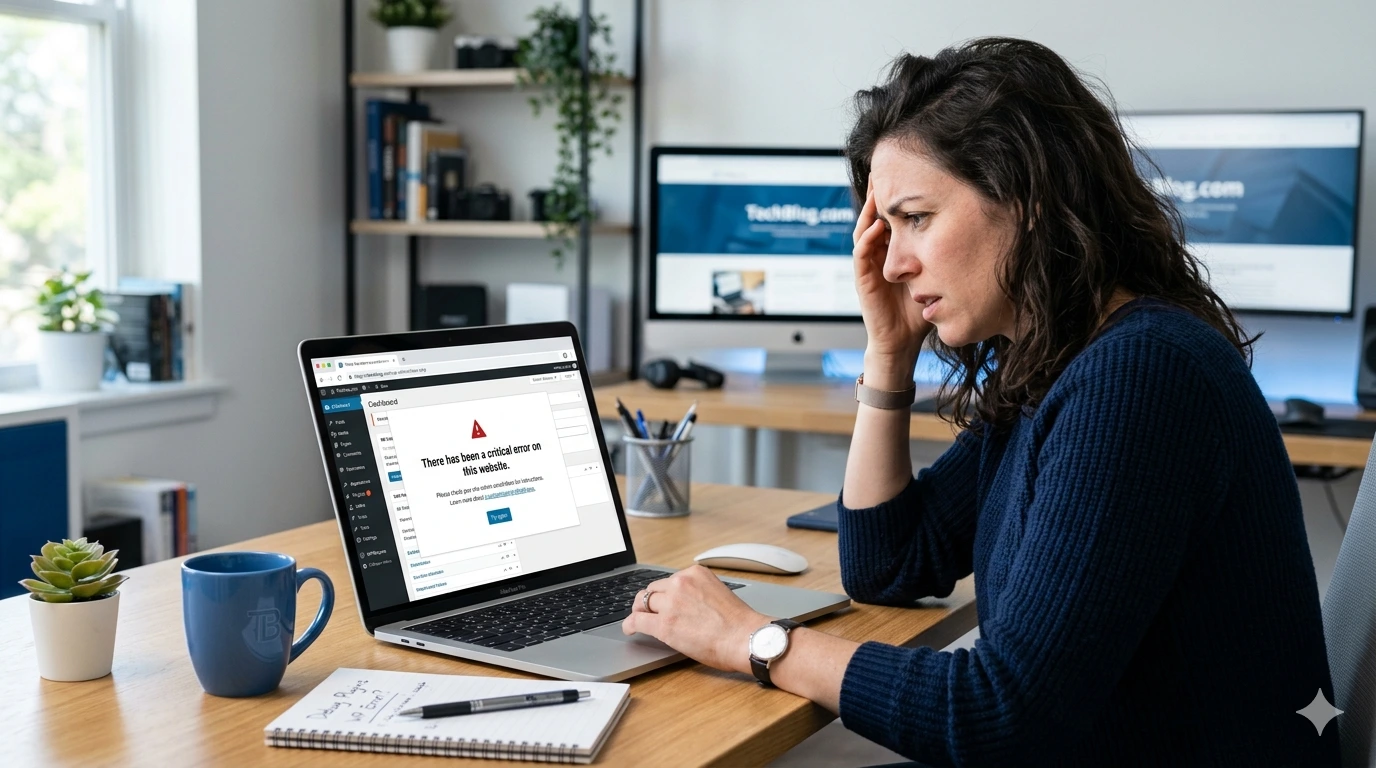
Few things are more frustrating than opening your WordPress website and suddenly seeing:
This error can make your website inaccessible, block admin login access, and affect your visitors or customers.
The good news is that this issue is usually fixable.
In this guide, you will learn:
- What causes the WordPress critical error
- How to identify the issue
- Step-by-step solutions to fix it
- Ways to prevent it in future
What Is the Critical Error in WordPress?
The critical error in WordPress is a fatal PHP error that prevents WordPress from loading properly.
Instead of displaying your website normally, WordPress shows an error message like:
This problem usually happens because of:
- Plugin conflicts
- Broken themes
- Incorrect custom code
- PHP memory limit issues
- Corrupted WordPress files
- PHP compatibility problems
Why This Error Happens
There are several possible reasons behind the WordPress critical error.
Common Causes of the Critical Error
- Outdated or incompatible plugins
- Broken WordPress themes
- Incorrect PHP code changes
- Insufficient PHP memory limit
- Failed WordPress updates
- Corrupted WordPress core files
- Unsupported PHP version
- Malware infection
In most cases, plugins or themes are responsible for the issue.
How to Fix the Critical Error in WordPress Step-by-Step
Follow the solutions below one by one until your website starts working again.
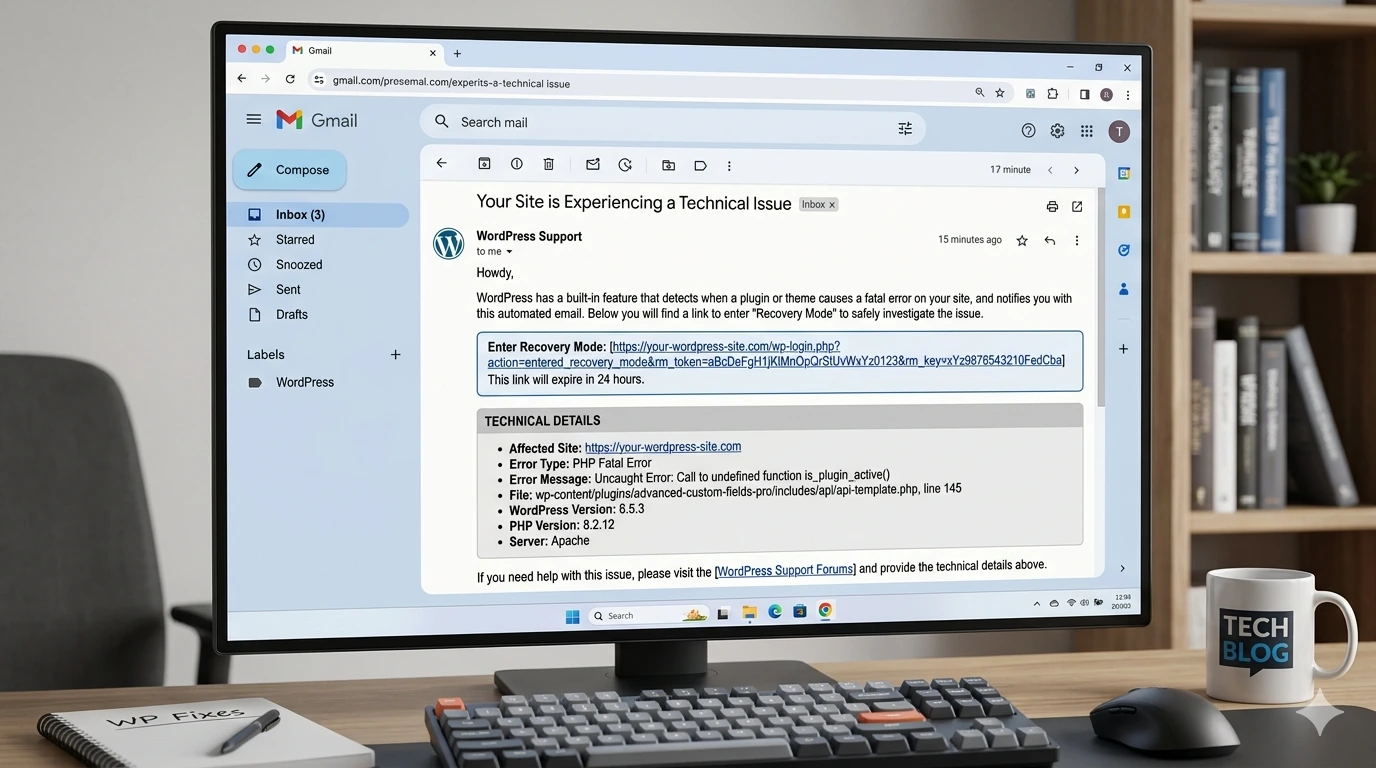
1. Check the WordPress Recovery Mode Email
WordPress often sends a recovery mode email to the administrator email address.
The email may include:
- The plugin or theme causing the issue
- A recovery login link
- Error details
Search your inbox for emails containing:
- Critical Error
- Recovery Mode
- WordPress
2. Disable All Plugins
A faulty plugin is one of the most common causes of the WordPress critical error.
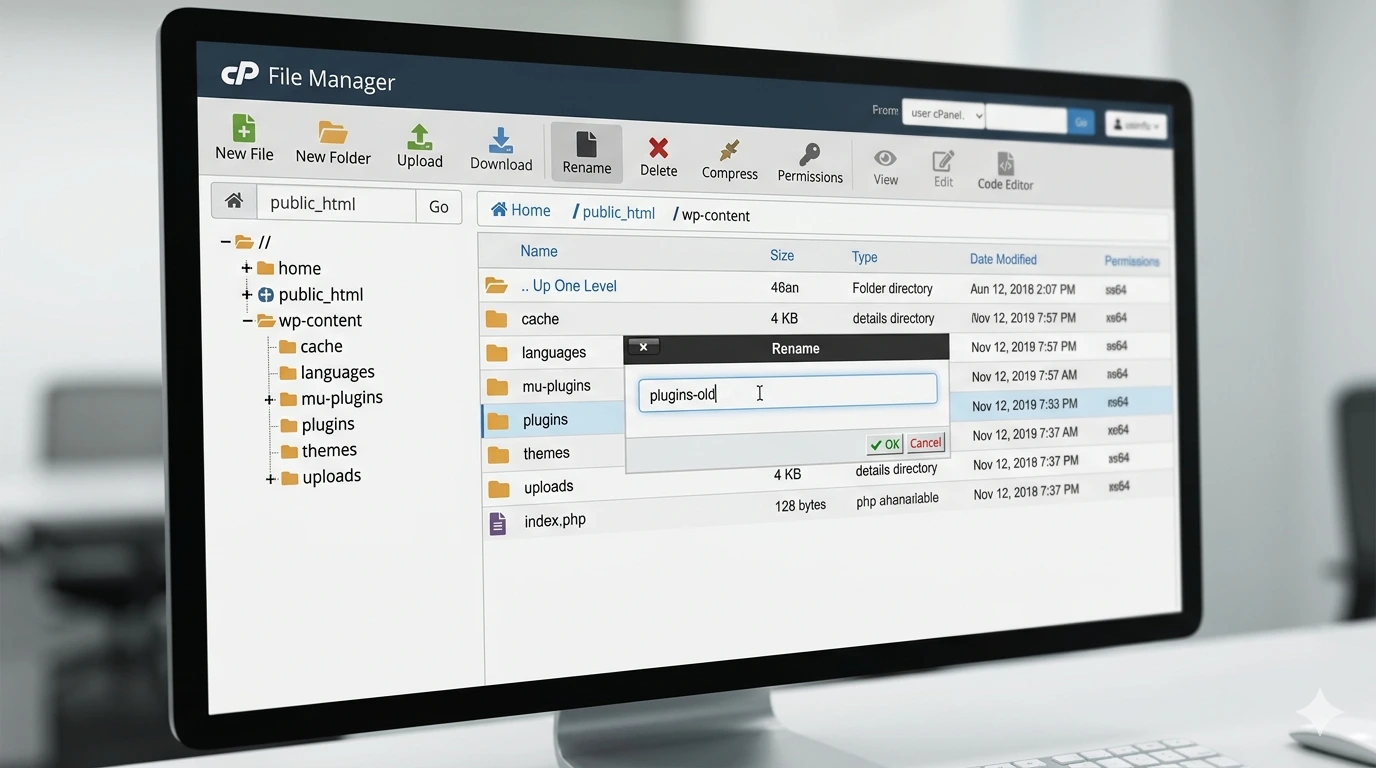
Steps to Disable Plugins Using File Manager
- Login to your hosting account.
- Open File Manager or connect via FTP.
- Go to:
public_html/wp-content/
- Rename the folder:
plugins
to:
plugins-old
Now refresh your website.
If the website starts working again, one of the plugins is causing the issue.
3. Identify the Faulty Plugin
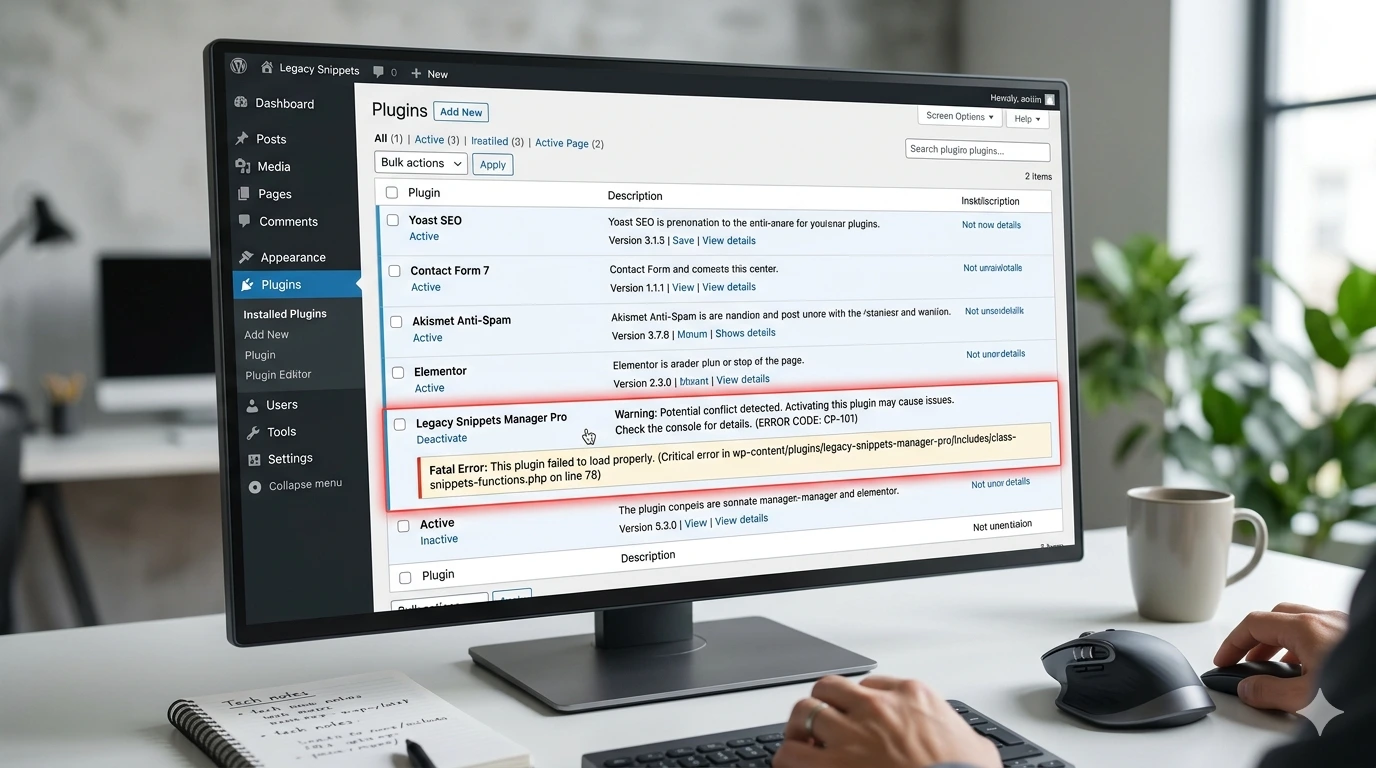
After your website starts working:
- Rename the folder back to:
plugins
- Login to the WordPress dashboard.
- Activate plugins one by one.
The plugin that breaks the website again is the problematic plugin.
You should:
- Delete the plugin
- Update the plugin
- Replace it with an alternative
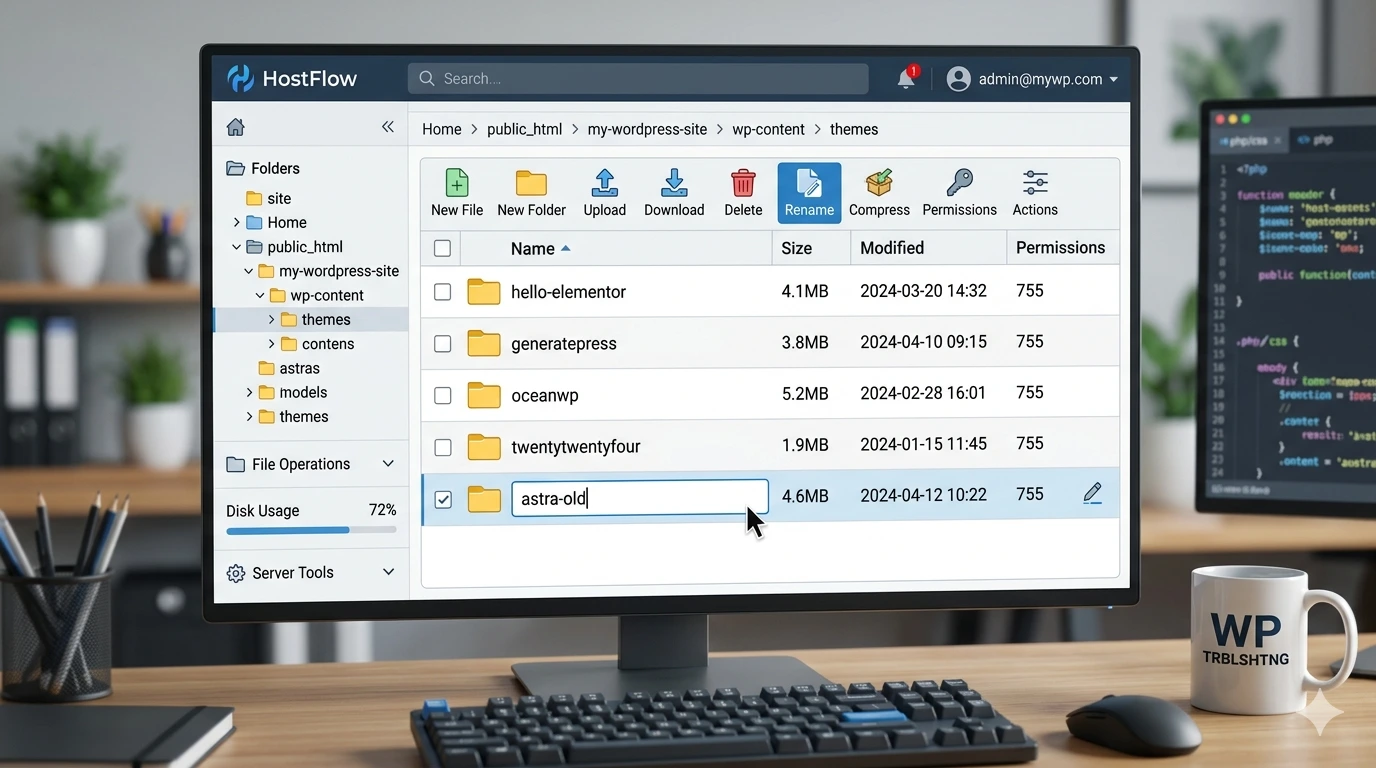
4. Switch to a Default WordPress Theme
Sometimes themes can also trigger fatal WordPress errors.
Steps to Test the Theme
- Go to:
wp-content/themes/
- Rename your active theme folder.
Example:
astra → astra-old
WordPress will automatically switch to a default theme like:
- Twenty Twenty-Four
- Twenty Twenty-Three
If the website loads correctly, your theme is causing the issue.
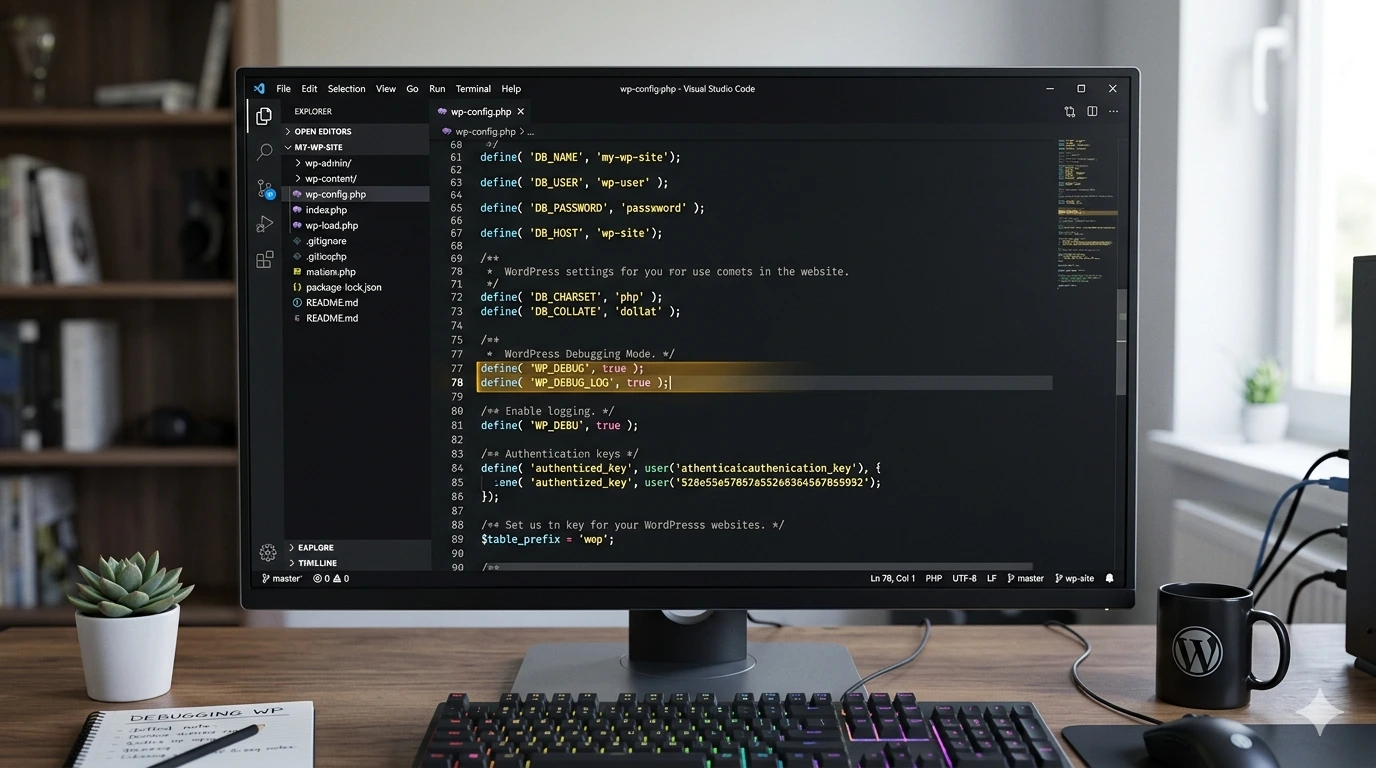
5. Enable WP_DEBUG Mode
WP_DEBUG helps identify the exact issue causing the critical error.
Steps to Enable WP_DEBUG
- Open:
wp-config.php
- Find:
define('WP_DEBUG', false); - Replace it with:
define('WP_DEBUG', true); define('WP_DEBUG_LOG', true); define('WP_DEBUG_DISPLAY', false); - Save the file.
WordPress will now generate an error log file inside:
wp-content/debug.log
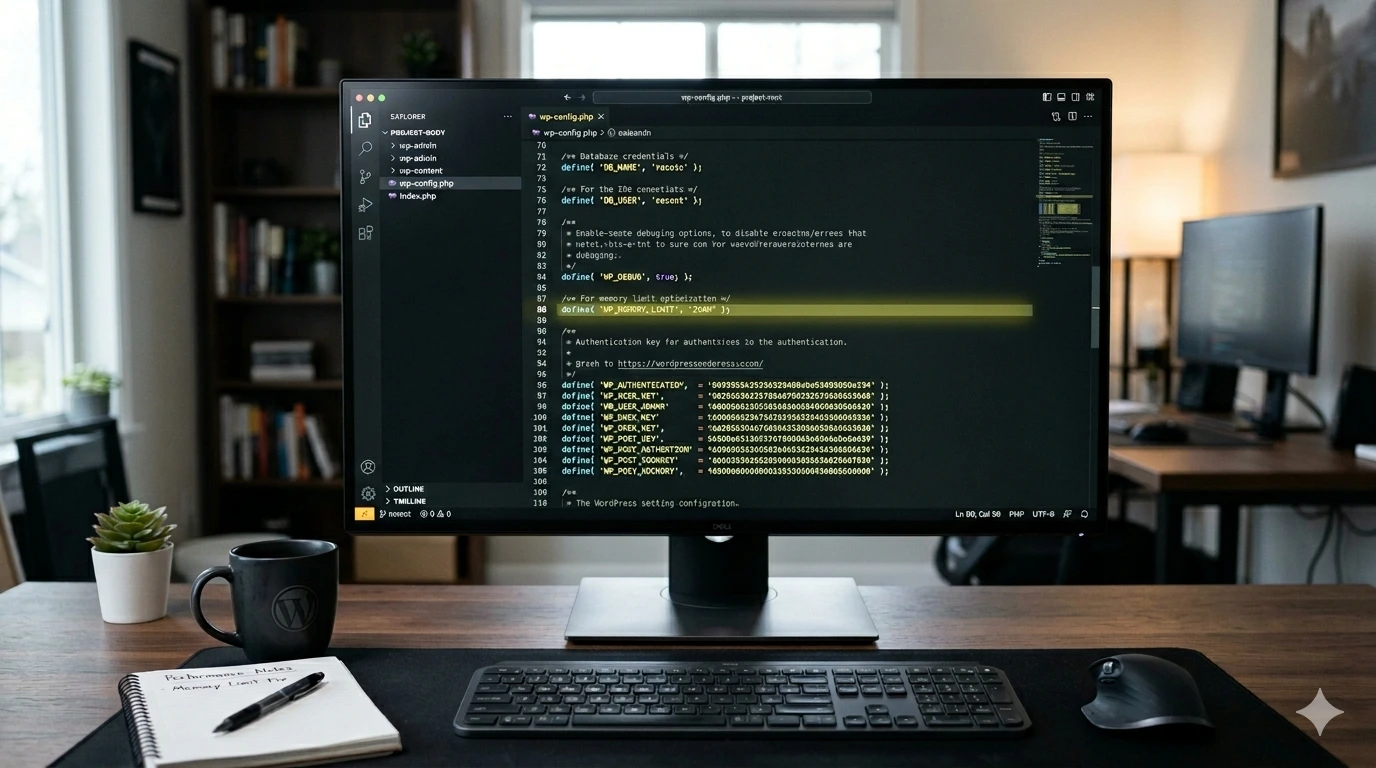
6. Increase PHP Memory Limit
Low PHP memory can also trigger critical WordPress errors.
Steps to Increase Memory Limit
- Open:
wp-config.php
- Add this code above:
/* That's all, stop editing! */
- Add:
define('WP_MEMORY_LIMIT', '256M');
Save the file and refresh your website.
7. Reinstall WordPress Core Files
Corrupted WordPress core files can break the website.
Steps
- Download a fresh copy of WordPress.
- Extract the ZIP file.
- Upload fresh versions of:
- wp-admin
- wp-includes
- wp-content
- wp-config.php
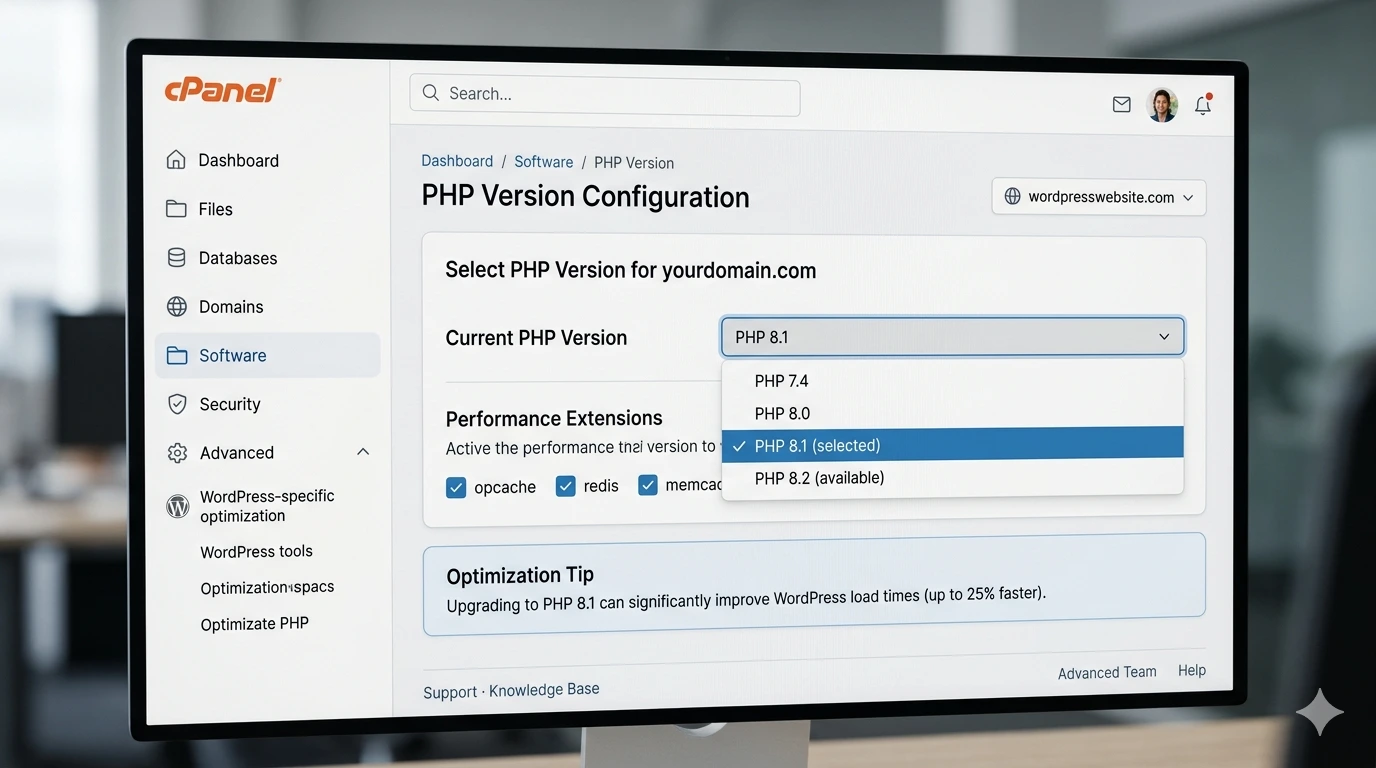
8. Update PHP Version
Old PHP versions may not support modern plugins or themes.
Recommended version:
- PHP 8.1 or higher
You can update PHP from your hosting control panel or cPanel.
How to Prevent Critical Errors in WordPress
Use these best practices to reduce future WordPress issues:
- Keep plugins and themes updated
- Delete unused plugins
- Use trusted themes and plugins
- Create regular backups
- Avoid nulled plugins/themes
- Use staging before major updates
- Monitor website logs regularly
Frequently Asked Questions
Can plugins cause critical errors in WordPress?
Yes. Incompatible or outdated plugins are one of the most common causes of WordPress critical errors.
Will I lose my website data?
Usually no. Most critical errors affect functionality instead of deleting content.
Can themes cause critical errors?
Yes. Broken or incompatible themes can trigger fatal WordPress errors.
How do I enable WordPress debug mode?
You can enable debug mode by editing the wp-config.php file and setting WP_DEBUG to true.
What if I cannot access wp-admin?
You can still troubleshoot the issue using File Manager, FTP, or your hosting control panel.
Final Thoughts
The critical error in WordPress may look serious, but in most cases it can be fixed by identifying the real cause.
Plugin conflicts, theme issues, memory problems, and corrupted files are usually responsible for the issue.
By following the steps in this guide carefully, you can restore your website safely and reduce the chances of future problems.
Need Professional Help?
If you are unable to fix the issue yourself, contact WPServiceHub for professional WordPress troubleshooting, maintenance, optimisation, and support services.